TL;DR:
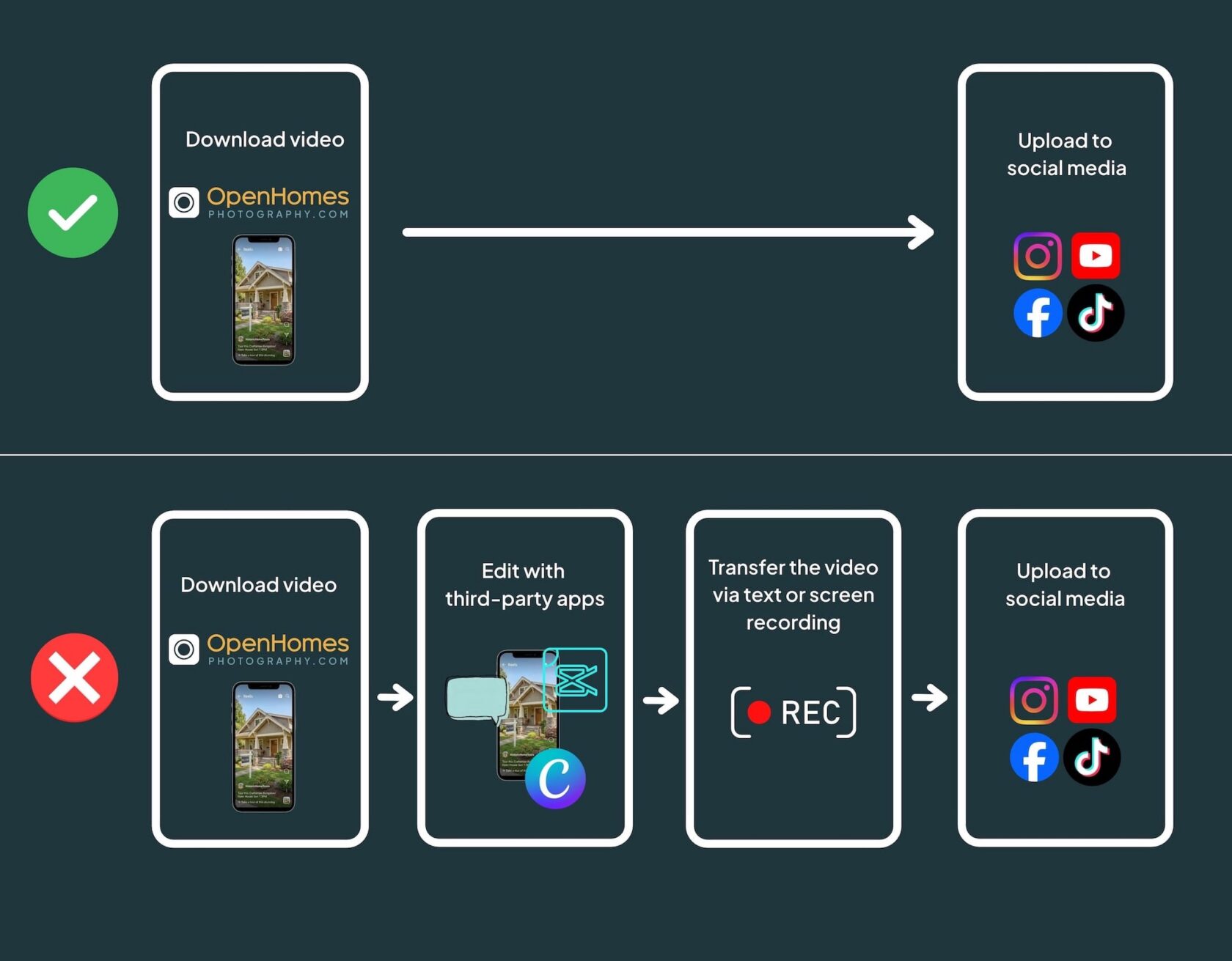
Your Open Homes video has been delivered to your Media Manager and is ready to share online. To maintain maximum quality and keep your video looking its best, download the original file and then upload it directly to Instagram, YouTube, or another platform.
Avoid editing the video in CapCut, Canva, captioning apps, or other editing tools to add captions, logos, bumpers, or additional changes. If you need one of these edits, contact our Customer Success team. Our editors will work from the original project to create a fresh, high-quality version.
Key Takeaways
- Treat your Open Homes video download as a completely finished, ready-to-publish video.
- Avoid re-editing the video in CapCut, Canva, or other third-party apps.
- Contact Open Homes if you need captions, logos, a shorter cut, a different aspect ratio, or another modification.
- Transfer the original file without texting, screen-recording, or re-exporting it.
- If posting on a platform that uses vertical video format (like Reels or TikTok videos), use the Vertical Social version of your video.
- Keep in mind, Open Homes provides the best file and you can follow best practices when uploading, but Instagram, YouTube, and other platforms ultimately control how videos appear.
Your Open Homes Video Is Already a Finished Product
By the time you receive your video, it has already gone through a complete production process. Our team has selected and timed the footage, balanced the color, mixed the audio, added approved graphics, and exported the finished video using the appropriate settings for quality and playback.
That makes Open Homes the ideal final step in your video production workflow.
It may be tempting to upload your video to CapCut, Canva, or another app to add captions, a logo bumper, text, music, or make other adjustments. However, the app generally needs to process and export the entire video again—and that’s not great news when we’re trying to preserve quality.
That new export may:
- Add another layer of compression
- Reduce the video’s bitrate or resolution
- Change the color, contrast, or brightness
- Alter the frame rate
- Crop or stretch the image
- Add black bars
- Generate a file that is poorly matched to its target platform
The result may still look fine on your phone. However, small quality losses can become more noticeable after Instagram, YouTube, or another platform processes the video again.
Why Re-Exporting Can Reduce Quality
Think of your finished video like a crisp, printed document. If you were to use a photocopy machine, the first copy would look fine. If you were to copy that copy, it would start to look rough. Why? Each new copy loses a little sharpness and detail. Repeatedly compressing or exporting your video can have a similar effect.
Each step may create a new copy. By the time the video reaches Instagram or YouTube, the platform is no longer receiving the original file Open Homes delivered.
Social platforms already apply their own processing and compression. Starting with the highest-quality file gives them the best source to work with.
Need Captions, Logos, or Another Version? Come Back to Open Homes
If the delivered video needs a change before you publish it, contact our Customer Success team rather than editing the finished file yourself.
We can help with:
- Captions
- Agent or brokerage logos
- Logo bumpers
- Shorter edits
- Different aspect ratios
- Updated graphics or text
Our editors can return to the original project and source material whenever possible. This allows them to make the change and create a new high-quality export designed for its final destination.
One round of video revisions is included with your order. Additional or specialized edits may require a fee. Customer Success can review your request and explain the available options.
Always Start With the Original File
Use the file you originally downloaded from the Media Manager.
Make sure to avoid:
- Screen-recording the video to make a new copy
- Downloading a previously posted version from Instagram or Facebook
- Manually shrinking the file before uploading
- Cropping a horizontal video into a vertical frame yourself
- Adding black bars when another format has already been provided
- Re-exporting the video when no edit is necessary
Move the File Without Changing It
Many clients download their videos on a computer but need them on a phone for posting. The goal is to move the original file without creating a smaller or altered copy.
Transfer options include:
- AirDrop
- Google Drive, Dropbox, or iCloud
- A direct cable transfer
- Another file-transfer service that preserves the original file
Messaging apps and text messages may reduce the size of large videos, and email services may limit large attachments. For the most predictable result, use a direct transfer or cloud-storage method.
When uploading, use a fast, stable Wi-Fi connection rather than standard cellular data.
Need a step-by-step guide on how to transfer a video from your Mac or PC to your phone? Check out our detailed instructions in our blog post, “How to Transfer a Video From Your Computer to Your Phone.”
Instagram: Use the Original File and Check Your Settings
Before posting to Instagram:
- Download or transfer the original Open Homes file to your device.
- Use the vertical or social-ready version if one was provided.
- Open Instagram’s Media quality settings.
- Turn on Upload at highest quality.
- Upload the file directly without resizing or re-exporting it first.
Leave the highest-quality setting turned on for future posts.
Instagram will still process the video after it is uploaded. The final appearance may also vary by device, connection, and other factors controlled by the platform.
YouTube: Give High-Resolution Processing Time to Finish
YouTube creates several versions of every uploaded video so it can play across different devices and internet speeds.
A new upload may initially be available only at a lower resolution. HD and 4K versions can take longer to finish processing—sometimes several hours.
For an important launch:
- Upload the original file to YouTube.
- Set the video to Unlisted.
- Wait for high-resolution processing to finish.
- Review the video.
- Change its visibility to Public when it is ready.
You can check the available resolution by opening the video and selecting Settings → Quality.
What These Steps Can (and Cannot) Guarantee
These practices help preserve the quality of the file Open Homes delivers. They reduce unnecessary compression and give each platform the best source available.
However, they cannot guarantee that a posted video will look exactly like the original file—or as sharp as a still photograph.
Video includes movement and must be compressed for online playback. Platforms may also adjust playback based on factors such as:
- Internet speed
- Device and screen size
- Browser or app
- Platform processing
- Available playback resolution
- Other factors controlled by the social media platform
Unfortinately, two viewers may not always see the same playback quality. Even when you follow every recommended step, the platform has the final say in how the video is processed and displayed.
What we can say with confidence is that unnecessary edits, transfers, and exports can give the platform a lower-quality file to start with. A direct upload protects as much of the original quality as possible.
A Quick Checklist Before You Post
- Am I using the original Open Homes file?
- Have I avoided editing or re-exporting the finished file?
- Did I transfer it without texting or screen-recording it?
- Is Instagram’s “Upload at highest quality” setting turned on?
- Am I uploading over a stable Wi-Fi connection?
- Does YouTube need more time to finish HD or 4K processing?
- Do I need Open Homes to add captions, logos, or another modification?
Frequently Asked Questions
Why does my Reel on Instagram look fuzzy?
Instagram processes uploaded videos, so some change in quality is expected. Additional compression may also occur before the upload if the video was re-exported, edited in another app, or transferred through a service that reduced the file size.
Start again with the original Open Homes file, turn on Upload at highest quality, and upload it directly.
Why is my YouTube video blurry?
YouTube initially processes videos at a lower resolution. HD and 4K versions may not become available for several hours.
Open the video and check Settings → Quality. If the expected resolution is not listed, processing may still be underway.
Can I add captions in CapCut?
You can, but doing so requires CapCut to create a new export of the full video. Depending on the app and export settings, that copy may be more compressed or may handle the color differently.
Contact our Customer Success team instead, and we can discuss creating a captioned version from the original project.
Can I add my logo or brokerage bumper myself?
We recommend having our team make the change for you. Adding a logo, bumper, or graphic in another app requires a new export and may reduce quality before the video reaches the publishing platform.
How do I fix a video that is already blurry?
If the video was compressed before it was posted, the lost detail generally cannot be restored from that copy. Return to the original Open Homes file and upload it again.
If you cannot locate the original or need a different version, contact Customer Success at (415) 592-5187 or support@open-homes.com.
A Final Word About the Final Edit
You invested in professional video because you want your marketing to look professional wherever it appears. The easiest way to protect that work is to keep Open Homes as the final step in the production process.
Download the finished file. Upload it directly. If you need something changed before you post, contact our Customer Success team. We can help make sure you have the right version for whichever platform you plan to share it on.